Using App Templates to Boost Productivity in Microsoft Teams


I think a lot of organisations are keen to start using custom applications to further boost staff productivity in Microsoft Teams but sometimes it’s difficult to know how to get started. One simple way is to take advantage of the App Templates that Microsoft publishes.

These are ready to use applications that adhere to security and infrastructure best practices, which can be deployed in Azure with no additional software development. Having said that all the source code is published, so the Templates can be customised and extended to meet specific customer requirements.

I recently attended an internal training event and part of the pre-work was to deploy the FAQ BOT Template. I’m definitely not a developer but I can follow instructions (available on GitHub), so I was able to deploy the BOT to Azure and configure it within Teams in about 2.5 hours.

Check out the result here:

Note: In a production environment you can control access to the FAQ BOT via Teams App Policies in the Teams Admin Centre.

In my opinion a Teams integrated FAQ BOT service has a huge number of use cases. As you know the same questions will always crop up. Collating the answers and adding them to a QnA Maker database is really easy. The answers are then available to every Microsoft Teams user through the BOT chat. If you stump the BOT, no worries, you can still reach a human colleague! The “Experts” can even add new Q&A pairs themselves, without the need to involve IT.

A FAQ BOT is an easy way to better assist end users and also give time back to help desk staff.
Enhancing Video Engagement in Teams Meetings


As you may have already have seen I’ve previously posted a couple of videos about using OBS for Live Events. If not, then check out “Network Device Interface and Microsoft Teams” and “Top Tip – Teams Live Events External Production” to learn more.

We never stop learning! During a team meeting last week my esteemed colleague Chris Haley shared how OBS (there are other encoders available) can be used to enhance presenter engagement during a Microsoft Teams Meeting. Our team then spent a couple of hours having some fun with the Technology. I’ve captured the end result below. Check this out!

If you followed this year’s Ignite announcements, then you will have already heard about the new Custom Layouts feature, which I think will probably wrap what I showed during the video directly into Teams. Even so, I still think tools like OBS will allow professional presenters to remain creative and bring even more engagement into their virtual deliveries.

If you are interested in building the meeting experience I showed above I’ve listed some high level steps below. The good news is that no GBPs were spent during the creation process and it is surprisingly easy to set up!

  1. Make sure you have a second Monitor connected to your PC/Laptop.
  2. Configure a green screen background for your webcam. I used chromacam. Just search for it on the web.
  3. Then use it to configure a Green background for your selected webcam.
  4. If you don’t have OBS studio download it. It’s free.
  5. Follow the configuration steps in above video.

Using Microsoft Teams and Bookings to enable Virtual Appointments


One side effect of the Covid-19 pandemic is that a huge amount of customer interactions in businesses and society have moved online. Assuming the technology holds up, I expect there to a place moving forward for virtual appointments across a whole diverse range of business types, ranging from healthcare to financial services.

Microsoft 365 Bookings is an application designed to help customers create and manage virtual appointments using Microsoft Teams. It comes in two flavours, a web portal and a Microsoft Teams application experience. The Teams App provides a sub set of the functionality that’s exposed in the web interface but is a great tool to use for the scheduling experience.

Any change made in either Teams or the Web is reflected in the other interface. As you might expect the Staff and Calendar components are tightly integrated into AAD and Exchange respectively.

I recently created this overview for one of the engagements I’ve been working on. Hopefully it will be of interest:

To learn more about Microsoft Bookings, check out the documentation.

Network Device Interface and Microsoft Teams


Microsoft Teams has recently added support for Network Device Interface (NDI), which is a LAN based IP Video broadcast technology. You can learn more about the mechanics of NDI here.

The first use cases I’ve started to see for NDI in Teams revolve around providing and consuming content to/from third party encoders to assist with the production of Live Events. For example, a Live Event producer can pull individual video streams out of a Teams meeting and add them as discrete sources within an encoder (such as OBS), then stream these into a Live Event broadcast.

This is really useful as it provides an easy way to insert additional video production content into a Town Hall or Broadcast event.

NDI support in the Microsoft Teams client is controlled via an admin policy. Refer to the Microsoft Docs if you want to learn more.

If you want to run through an introduction on producing Live Events with an external encoder, check out my previous post: Teams Live Events External Production.

Microsoft Teams Voice in Regulated Environments


As you are probably some countries have implemented a regulatory framework that prohibits customers implementing toll bypass within their own telephony environments. In this blog I am going to share a short 5 minute video that introduces Locations Based Routing (LBR), which is a technology that can be used in this type of deployment scenario.

Strong Warning: It is the responsibility of the Microsoft Partner and/or Customer to take counsel to ensure any given LBR implementation meets the legal requirements of the country it is being deployed in.

As mentioned in the video, the lab Direct Routing implementation used non-media bypass. In production scenarios it is very likely a media bypass probably with Local Media Optimisation (LMO) would be configured. I’ve previously posted a blog about LMO here.

To find out more about Locations Based Routing, please refer to the Microsoft documentation.

Microsoft Teams Channel Meetings – Before During and After


In a previous blog I provided an an example of the Microsoft Teams Meeting Lifecycle for a private internal meeting. In this post I’m sharing some video content I’ve created for a Channel Meeting scenario.

In addition to the Meeting Lifecycle, some of the key points this demonstration highlights are: Multi-Factor Authentication and Terms of Use applied to Guest Access, Integrated App Experiences and the Richer Meeting Privileges afforded to Guest users.

Protecting against Data Loss in Microsoft Teams Meeting Chats


In my recent blog called My Teams Security Slide I called out support for Data Loss Prevention (DLP) Policies for Microsoft Teams. I think most IT Pros are very familiar with these native platform controls built into Microsoft 365 and may have already applied them to Microsoft Teams Chats and Channels.

One thing I always point out is these same polices will be applied during a Microsoft Teams Meeting to protect against accidental data loss from within the Meeting Chat. This short video demo provides an example use case:

So in the video above Joni invites Adele to a meeting in her Microsoft 365 tenant and is protected from erroneously sharing credit card information. But what happens when Joni is in a meeting that’s hosted in an external tenant?

She is still protected! Check this video out:

Securing Teams Meetings Content Sharing


I recently posted a short blog called My Teams Security Slide, which contained an overview of the security controls I associate with Microsoft Teams. One of the features I listed was “Sensitivity Labels for Content”, which for organisations concerned about data loss prevention is a way of classifying content and applying security policies.

So what does this has to do with a Teams Meeting?

Microsoft 365 Sensitivity Labels actually allow administrators to managed document permissions and Microsoft Teams will honour these. One of the net effects is that is that you can restrict the ability to share confidential documents during a Teams Meeting.

I created this video to demonstrate the resulting end user experience.

This is a great way to protect against accidental data loss during a Microsoft Teams share. But what about policing a Teams Meeting chat? I’ll talk about this in a future post.

Automating Microsoft Teams Creation


A couple of the common questions that IT Pros raise when they are new to Microsoft Teams is, “how do I control Teams sprawl and how can I put some Governance controls into the Teams creation process”?

There are a lots of tools at an administrator’s disposal to answer both these questions, but one approach I personally like is to have some form of automated process to manage Microsoft Teams creation.

Over the last last couple of years I’ve delivered numerous training events on this topic. One of my favourite pieces of work is a lab in which Partners use a combination of a SharePoint list, the Power Platform and Graph API to build an automated process for Microsoft Teams creation. My latest iteration of the lab has been around for over a year and I’ve finally got around to creating a video demo. Check it out below:

If you want to have a crack at building this demonstration, you can download the lab guide from here – Lab Guide Download.

As I mentioned this piece of work is over 12 months old now, if I ever have some time to update it I would replace the SharePoint classification label with a Sensitivity label. One of the benefits of the new modern label is that you can also use it to control Guest Access.

My Teams Security Slide


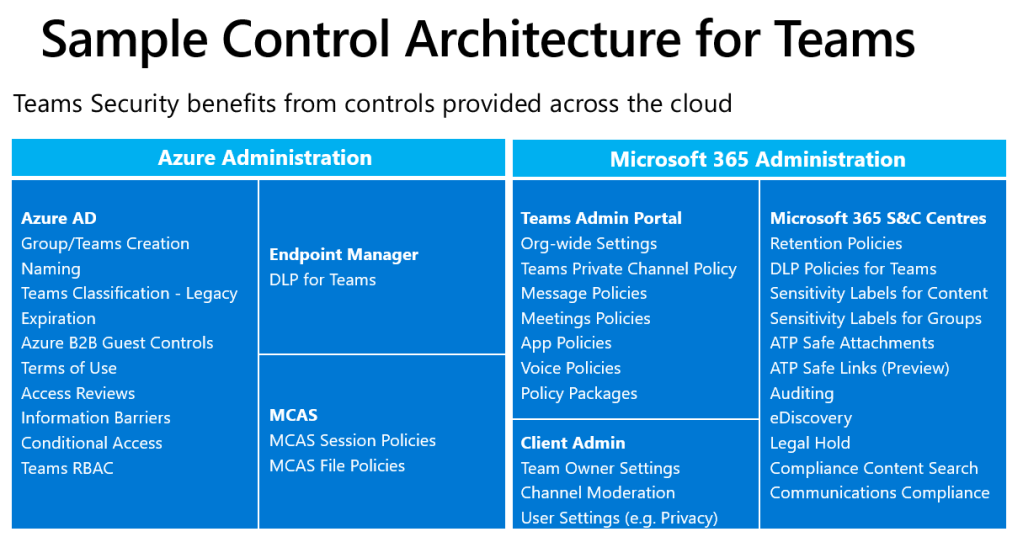
One of the things that I personally like about Microsoft Teams from an architect’s perspective is that the service leverages existing Microsoft 365 and Azure AD security capabilities. From an Admin’s perspective, the security features available for other Microsoft 365 services such as EXO and SPO are, when relevant, directly applicable to Teams.

Having said this, if you are new to Microsoft Teams you might struggle to get your head around which of the myriad of available controls relate to Teams and whether they fall under the Microsoft 365 or Azure AD administrative umbrellas. To try and help with this I recently created the diagram below to try and position a lot of the “bells and whistles” you might want to consider for a Teams security posture. One point to note is that different customers (or parts of a business) will have different security requirements. But I use this chart as a bit of a cheat sheet to remind me of some of the main components that should/could be considered during the planning stages of a Teams implementation.

Note; As per the slide name this is a “sample” of the capabilities so may not be exhaustive but it works for me as a super high level overview.

Anyway, just thought I’d post this in case this was helpful. I’ll probably bring some of the features mentioned above to life by way of some video demos in future posts.