Microsoft Teams Business Voice with Calling Plan: Direct Routing Tip


As you are likely aware Microsoft Teams Business Voice comes in two versions in the UK, with Calling Plan and without. At the time of writing Microsoft Partners who have the Small and Midmarket Cloud Solution competency have Business Voice included as part of their Internal Use Rights (IURs). The UK IUR licensing comes with Microsoft Calling Plan. I mention this as the scenario discussed below applies to both standard and IUR Business Voice licensing.

Even though they have Microsoft Calling Plan use rights some customers/partners may still want to assign an on-premises phone number to one or more of their users. An example scenario might be a Microsoft UK Partner with Business Voice IURs who wants to use their own Direct Routing service for PSTN calls.

This is perfectly legal but even if Direct Routing is set up correctly and the user is assigned their on-premises number I’ve seen this configuration fail. Why? The short video below contains the answer.


The resolution may seem trivial with hindsight but it’s an easy step to overlook!
Tagging in Microsoft Teams Status Messages


Sometimes it’s the simplest things that turn out to be most useful. For example, I think it’s common knowledge that you can set a personalised status message in Teams, which then can be used to compliment your presence status. However, did you know that you can also use the @Tag feature in your status message to provide alternate contacts? In fact you can provide more than one!

This feature is especially useful in a Front Line worker or Operational environment when staff have to take breaks or are not on their shift. Using Tags they can let colleagues know who is covering for them.

Check out the short demonstration below:

In the video I also show that it’s possible to mark a message as Important or Urgent. Again in some situations the ability to repeatedly keep notifying the recipient is extremely helpful.

Microsoft Teams Channel Calendars


Microsoft Teams Channel Calendars provide a simple way to track meetings for a specific channel community. Entries are also integrated into personal calendars so individuals always have a single source of truth for their daily schedules.

If Teams have external Guests assigned to them, they won’t unfortunately be able to access the Channel Calendar tab. Although they will receive an invite for any meeting scheduled and it will appear in their personal Teams and Outlook calendars.

Check out this short overview demonstration to get yourself started:

Note: As is the case with meetings created directly within the channel, when you schedule using your Channel Calendar you can also invite people inside and outside of your organisation who are not part of the Team.

On-network Conferencing for Microsoft Teams Audio Conferencing


On-network conferencing for Microsoft Teams is simply the ability to make calls to Audio Conferencing Service numbers across an organisation’s Direct Routing deployment. For example, this might be handy during a migration project if you want PBX end users to be able to dial into Teams Meeting from existing 3rd party IP, Digital or Analogue handsets.

As shown in the video below the On-net conferencing feature supports both dial-in and dial-out from Teams Meetings. The dial-out function is enabled by creating an Audio Conferencing routing Policy (New-CsOnlineAudioConferencingRoutingPolicy) and assigning it to end users. For more information please refer to the documentation.

Note: At the time of writing this capability is currently in Public Preview.

Approval Flows in Microsoft Teams


In the past I’ve used Power Automate to create approval flows within Microsoft Teams. Check out my post on Automating Microsoft Teams Creation. For complex approvals using the traditional Power Platform is still often going to be the correct approach. Although Microsoft Teams does provide an integrated alternative. The Microsoft Teams Approval App uses the underlying Power Automate infrastructure but makes it really easy for end users to create and use approvals directly from their Teams Channels, Chats or from the Approval App itself.

There are a huge number of use cases for approvals within any organisation. Basically any process that needs some form of permission, check or consensus currently using email or paper could be moved into Teams and make use of the App. To help visualise how the approvals work within Teams I created the following short video demo.

From an administration perspective:

  1. An end user can control their Approval Notifications from their Teams client’s settings:

2. An administrator can manage user access to the Approvals App using custom Permission Policies in the Teams Admin Portal. A (very) simple example is shown below:

For further information check out the Approval App documentation.

Controlling Microsoft Teams Guest Access using Sensitivity Labels


Part 2 of 2: The Admin Experience

The video demonstration below provides a basic overview of how I created the sensitivity labels and the associated policy that I used during my Part 1 of 2: The End User Experience post. If you are new to this topic it should provide a useful few minutes of content to help you get started.

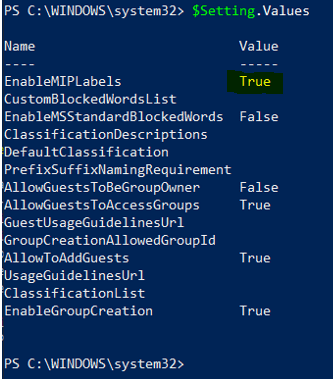
Enabling Sensitivity Labels in a Tenant: At the time of writing I had to enable MIP (Microsoft Information Protection) in my tenant to turn on Sensitivity labels. Some getting started documentations is provided here. I’ve pasted a screenshot of the Group.Unified template with MIP enabled below:

In a production environment there are numerous other considerations we need to incorporate into a deployment plan. For example, if a tenant has previously used Classic Azure AD group classification, then you’ll probably want to migrate these labels to your new ones. For more detailed information about this topic and others start here.

Controlling Microsoft Teams Guest Access using Sensitivity Labels


Part 1 of 2: The End User Experience

Guest Access is a really useful way to work collaboratively in Microsoft Teams with people who are not part of your tenant. However, most organisations want to provide controls that allow some teams to have Guests and block external users from others. This can be achieved in a number of ways ranging from PowerShell to the Power Platform and the approach an administrator takes will most likely depend of the business requirements and the security posture of their company.

One way of providing end users the ability to choose their Guest policy as they create (or edit) a team is via the assignment of a Sensitivity Label. These can be used for a variety of purposes such as protecting content or restricting access from un-managed devices but the video below focuses on blocking/allowing external users within a team.

In Part 2 of this blog I’ll run through the basic admin experience around the creation of the Sensitivity Labels shown in the above demonstration.

Microsoft Teams In-Meeting Polls using Forms


I created the video demo shared in this post to show that’s it’s really easy to add in-meeting polls to Microsoft Teams meetings using Forms. Consider this a top tip!

The polls can be created ahead of time and support anonymous responses if desired. I think this capability is really useful for anyone who wants to solicit specific feedback from their meeting attendees. If required, each Poll can be downloaded as an Excel spreadsheet.

Learn About Microsoft Teams Breakout Rooms in 5 Minutes


The Breakout Room feature in Microsoft Teams has recently been rolled out. I’ve created the ~ 5 minute video below as a short introduction.

Breakout Rooms allow meeting participants to be divided into groups and added to separate “sub-meetings” that are linked to the main meeting. This allows members of each breakout to work together for a period of time before returning to the main meeting.

For reference, the Microsoft General Availability announcement can be found here.

Using App Templates to Boost Productivity in Microsoft Teams


I think a lot of organisations are keen to start using custom applications to further boost staff productivity in Microsoft Teams but sometimes it’s difficult to know how to get started. One simple way is to take advantage of the App Templates that Microsoft publishes.

These are ready to use applications that adhere to security and infrastructure best practices, which can be deployed in Azure with no additional software development. Having said that all the source code is published, so the Templates can be customised and extended to meet specific customer requirements.

I recently attended an internal training event and part of the pre-work was to deploy the FAQ BOT Template. I’m definitely not a developer but I can follow instructions (available on GitHub), so I was able to deploy the BOT to Azure and configure it within Teams in about 2.5 hours.

Check out the result here:

Note: In a production environment you can control access to the FAQ BOT via Teams App Policies in the Teams Admin Centre.

In my opinion a Teams integrated FAQ BOT service has a huge number of use cases. As you know the same questions will always crop up. Collating the answers and adding them to a QnA Maker database is really easy. The answers are then available to every Microsoft Teams user through the BOT chat. If you stump the BOT, no worries, you can still reach a human colleague! The “Experts” can even add new Q&A pairs themselves, without the need to involve IT.

A FAQ BOT is an easy way to better assist end users and also give time back to help desk staff.