I created the video demo shared in this post to show that’s it’s really easy to add in-meeting polls to Microsoft Teams meetings using Forms. Consider this a top tip!
The polls can be created ahead of time and support anonymous responses if desired. I think this capability is really useful for anyone who wants to solicit specific feedback from their meeting attendees. If required, each Poll can be downloaded as an Excel spreadsheet.
We never stop learning! During a team meeting last week my esteemed colleague Chris Haley shared how OBS (there are other encoders available) can be used to enhance presenter engagement during a Microsoft Teams Meeting. Our team then spent a couple of hours having some fun with the Technology. I’ve captured the end result below. Check this out!
If you followed this year’s Ignite announcements, then you will have already heard about the new Custom Layouts feature, which I think will probably wrap what I showed during the video directly into Teams. Even so, I still think tools like OBS will allow professional presenters to remain creative and bring even more engagement into their virtual deliveries.
If you are interested in building the meeting experience I showed above I’ve listed some high level steps below. The good news is that no GBPs were spent during the creation process and it is surprisingly easy to set up!
Make sure you have a second Monitor connected to your PC/Laptop.
Configure a green screen background for your webcam. I used chromacam. Just search for it on the web.
Then use it to configure a Green background for your selected webcam.
If you don’t have OBS studio download it. It’s free.
Microsoft Teams has recently added support for Network Device Interface (NDI), which is a LAN based IP Video broadcast technology. You can learn more about the mechanics of NDI here.
The first use cases I’ve started to see for NDI in Teams revolve around providing and consuming content to/from third party encoders to assist with the production of Live Events. For example, a Live Event producer can pull individual video streams out of a Teams meeting and add them as discrete sources within an encoder (such as OBS), then stream these into a Live Event broadcast.
This is really useful as it provides an easy way to insert additional video production content into a Town Hall or Broadcast event.
NDI support in the Microsoft Teams client is controlled via an admin policy. Refer to the Microsoft Docs if you want to learn more.
If you want to run through an introduction on producing Live Events with an external encoder, check out my previous post: Teams Live Events External Production.
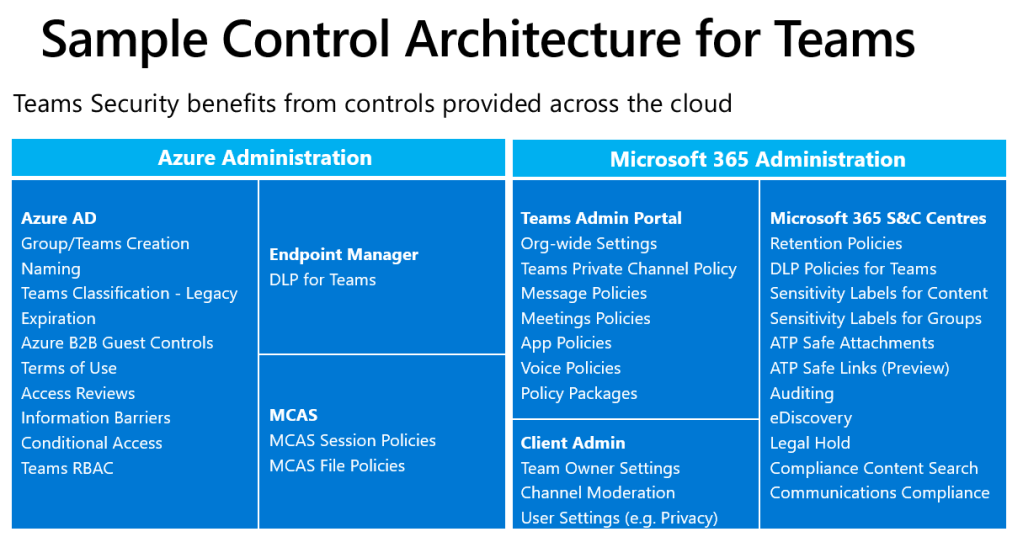
One of the things that I personally like about Microsoft Teams from an architect’s perspective is that the service leverages existing Microsoft 365 and Azure AD security capabilities. From an Admin’s perspective, the security features available for other Microsoft 365 services such as EXO and SPO are, when relevant, directly applicable to Teams.
Having said this, if you are new to Microsoft Teams you might struggle to get your head around which of the myriad of available controls relate to Teams and whether they fall under the Microsoft 365 or Azure AD administrative umbrellas. To try and help with this I recently created the diagram below to try and position a lot of the “bells and whistles” you might want to consider for a Teams security posture. One point to note is that different customers (or parts of a business) will have different security requirements. But I use this chart as a bit of a cheat sheet to remind me of some of the main components that should/could be considered during the planning stages of a Teams implementation.
Note; As per the slide name this is a “sample” of the capabilities so may not be exhaustive but it works for me as a super high level overview.
Anyway, just thought I’d post this in case this was helpful. I’ll probably bring some of the features mentioned above to life by way of some video demos in future posts.
When the virtual Meeting Lifecycle concept was originally introduced it took me a while to get my head around how this would play out in real life. After going through my own personal learning curve a couple of years ago I’ve become a big fan.
Moving forward to 2020 I think it’s a perfect time to revisit this topic to ensure anyone using Microsoft Teams is taking full advantage of the “pre” and “post” meeting phases of the Lifecycle. Given the current state of the world a high proportion of meetings are now taking place online and I don’t think anyone wants to waste time during a call to handle tasks that could be dealt with offline and asynchronously.
One of the mantras I have is to try and keep remote meetings as short as possible and attempt to limit them to important interactions and decision making. If possible I try not to book back to back meetings. I expect most of us have experienced the machine gun meeting phenomenon and the subsequent stress of arriving late (and under prepared) for the next meeting. As a result I normally schedule 30-45 minute calls, which gives me some time to actually do some “in between” work and be punctual.
However, this is where the before and after sections of the Microsoft Teams Lifecycle come into their own. To be able to keep my meetings as short as possible, when appropriate, I will do some initial collaborative preparation and post real-time wrap up.
Once you get use to this way of working it’s really productive but new users may need help with the “Art of the Possible”. So I decided to create some videos that I use to demo the Lifecycle. In case it helps, I’ve shared one of them below:
If you know about virtual meeting tools then you have probably come across or used Live Events, which is the meeting broadcast solution that’s part of Microsoft Teams. It’s not entirely unexpected but I’ve seen a rapid rise in the use of Live Events over the last 6 months and I am actively working with Microsoft Partners to increase market capacity for this type of meeting in the UK.
When reading up on Live Events you may have come across external encoding? This is the ability to use 3rd party equipment to deliver studio quality production via the Teams Live Events client. I felt the documentation was a bit dry so I created the following demonstration video to provide a quick intro into this topic in under 4 minutes.
Hint – the encoder password shown in the video is a dummy one
As you can see it’s actually not too hard to get started with the technology. However, I believe they key to delivering a professional looking event is actually creativity, preparation and practice, regardless of the encoding/production method you are using.
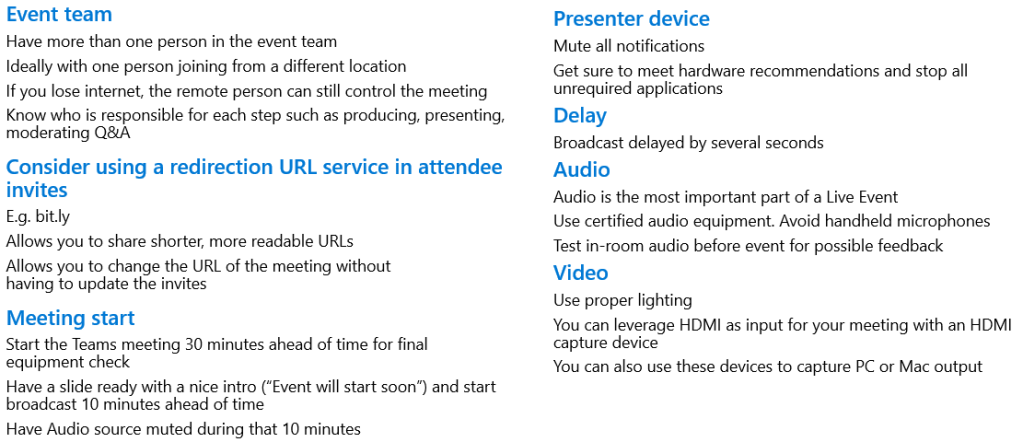
Just to finish off, here are a few tips and tricks that might be useful:
This is a handy little tip to make your virtual work life that little bit easier. If you’ve not seen this before you can switch on PowerPoint presenter mode and use it from within a Microsoft Teams meeting. This gives you handy access to your notes and other presentation tools, while still presenting in “full screen” mode to your remote attendees. Check out this short video below for more details:


 Karl's Microsoft Teams and Viva Blog